06 Dec 2013
I’ve been working on and off on Programmer’s Notepad for over 15 years, version 1 written in Delphi and version 2 a complete rewrite to teach myself C++. While I was a student it was developed whenever I had free time (which I had lots of). Days, evenings, nights, weekends, there was plenty of work put in. Once I started working this reduced to evenings and weekends, but still a lot of them - particularly when I was travelling with work. I was lucky to have a job with almost no commute, and an understanding girlfriend (now wife). Now I work at the end of a 1 hour commute, and I also have two children, and I find almost no time left for hobby coding. I was slightly scared to note that on the two year anniversary of my new job, I’d released nothing and written barely anything for the last two years.
However, maintaining Programmer’s Notepad still managed to consume a number of evenings/spare days during those two years - just usually not on adding features or fixing bugs. For years I’ve insisted on running my own server, maintaining a Linux VPS in order to serve whatever hosting needs I have at the time. My Debian (some time gentoo) VPS has been mail host, web server for numerous Wordpress/Wiki/bbPress/… sites, useful ssh endpoint and more, but hosting pnotepad.org has increasingly become a burden. I no longer have the time to spend hours dealing with:
-
Debian security updates
-
Difficult distro upgrades
-
Security patching four or five different web apps
-
Working out which app is responsible for swallowing all the memory on the server every other day due to a horrible authentication implementation (I won’t bore you with the details here)
-
Dealing with difficult version upgrades requiring template changes or complete site overhauls
I realised that something had to change, in order that when I had spare time I could use it to improve my software rather than just running to stand still. I decided I wanted to move as much of my site infrastructure as possible away from self-hosted php apps, possibly away from my VPS entirely (which could also save me money).
Enter Jekyll and GitHub. I’m gradually migrating all my site content to static HTML, authored in markdown, presented using Jekyll, stored and version controlled on GitHub. The first thing I moved was Programmer’s Notepad’s documentation. Previously stored using Dokuwiki, I had already had to completely lock down contributions due to constant spam attacks, and recently keeping Dokuwiki working well had been taking time. Now moved to Jekyll, the mostly-static content serves quickly and pain-free. Even better, the content is all on github so users can still easily contribute documentation. It’s perhaps not as simple as using a wiki, but the end result is sustainable.
Next up is the main Programmer’s Notepad site, also largely static but served via Wordpress for ease of editing. This is under way now using the same recipe, and the slight extra cost of editing via GitHub will be more than offset by drastically simpler serving.
The remaining troublesome app is the forums, and I still haven’t quite decided what to do there. They contain lots of useful content, but keeping bbPress happy is my biggest ongoing headache - it is nowhere near as simple to use/upgrade as Wordpress. I have a half-finished simple forum hosting app (written on an idle weekend) that I’m tempted to finish off, or perhaps I’ll just switch back to Google Groups and cut my losses. Eventually it would be nice to use Github pages to host the whole domain, leaving Wordpress and VPS maintenance woes behind.
21 Nov 2013
I have a candidate release of Programmer’s Notepad 2.4 ready, including the following changes:
What’s new in 2.4?
-
Fuzzy matching in “Jump to” dialog, e.g. MTM for MyTestMethod
-
New style presets
-
New translations
-
Delay Windows shutdown for file save
-
Improved find dialog resizing
-
Python Scripting Extension (PyPN) included as optional component in installer
Bug Fixes:
-
Fixes to XML/HTML tag completion
-
UTF-8 Replace All and UTF-8 character code improvements for Regex search
-
Fix for script recording due to Scintilla bug
Please help to test it, let me know if it’s ready for primetime!
Download Installer
Download Portable
Update: Users with unstable updates enabled should now see this update available.
21 Nov 2013
With Google Code turning down downloads, and my own source control use tending towards git recently, I decided it was time to move the Programmer’s Notepad code and releases.
Now available on GitHub: http://github.org/simonsteele/pn/
I took the opportunity to merge the translations from pnotepad-trans back into the main tree, keeping them separate added un-necessary overhead and most contributors did not use Google Code to submit changes. Now savvy users can fork and issue pull requests, or edit directly using GitHub. A win for simplicity!
There are two main branches to look at on GitHub, the main tree which contains just PN for Windows, and the “peanut” branch which contains the work I began a year or so ago on a cross-platform port. You can run a simple single-window edit view on OS/X with the correct scheme applied, but that’s as far as it goes so far. The branch contains a significant code reorganisation for the bits of code used, and it will take time to merge with the main branch - if it happens.
26 Nov 2011
We don’t celebrate Thanksgiving in the UK, but this seems like a good time to pass on my thanks to people who have sent gifts who I have been unable to thank personally. So without further ado, Thank You very much to the following:
Alex Bolton
Glenn Castleman
Stuart Denyer
Matthew Farey
Steve Klett
Steven McGahey
Oliver Schneider
Vladimir Udilov
Unfortunately Amazon do not usually provide contact details for gifts any more, so my apologies to all of you for not thanking you sooner. To all those who I’ve been able to contact, my thanks once again!
01 Sep 2011
I’m happy to finally announce a new stable release, Programmer’s Notepad 2.3, has been released to our Google Code page. This release has focused on cleaning up many areas of 2.2 that were buggy or incomplete, and so doesn’t many large new features. Instead look for small improvements all over the place.
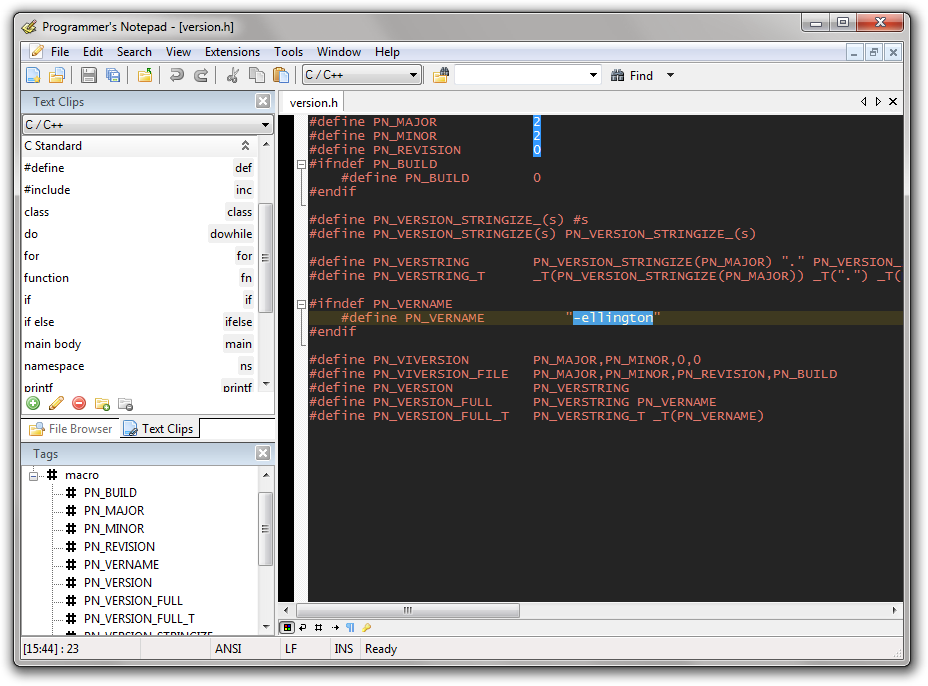
Headline Changes in 2.3:
-
Jump dialog now filters results as you type.
-
Custom scheme is now implemented as a PN extension, and adds extra identifier block comment types
-
Double-click on tab bar (not on tab) starts a new doc.
-
Miscellaneous updates to schemes to improve highlighting (including HTML5 elements and attributes).
-
RTF export reworked, background colours now working better.
-
Properties scheme folding.
-
Select a URL and right-click to go to it.
-
New German and Russian translations.
-
Scheme Presets: Solarized (Light), improved Obsidian, thanks to contributors.
More than 25 bugs both small and large were fixed in this release, and it has had a good series of test builds to try and shake big problems loose.
Downloads:
Download 2.3 Installer
Download 2.3 Portable
You may also like to add the PyPN extension to your 2.3 install to get support for scripting/macros with Python: PyPN 1.1
Finally I wanted to say thank you to all those who make these releases what they are. Firstly to everyone who has contributed code, designs or ideas, and to all those who download every test build and provide feedback or bug reports. Next to the translators who have updated existing translations and added new languages for this release, thanks for your patience as we make more and more of the UI translatable. Last but not least thanks to those who have sent donations or gifts, I try to thank you personally where I can, but Amazon often doesn’t send me contact details - please know they’re all appreciated!